
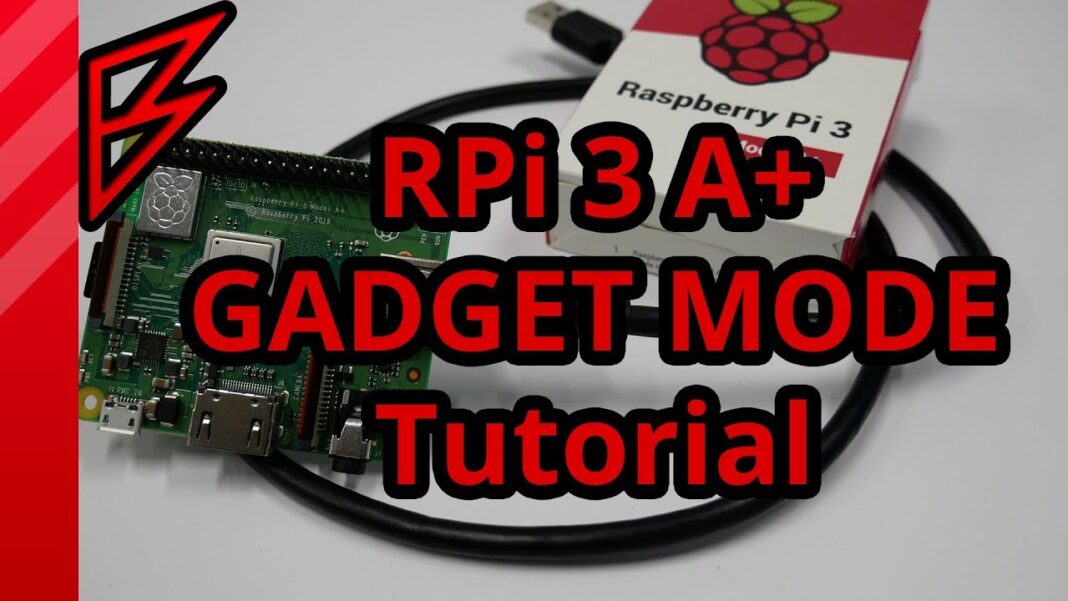


The Raspberry Pi now offers a simpler way to connect—no Wi-Fi required. Starting with the latest Raspberry Pi OS “Trixie” image (dated 20 Oct 2025 or newer), every Model 3 A+ and up includes a built-in USB gadget mode. Plug a USB-C cable from the Pi into any Windows, macOS, or Linux laptop, and you get power, SSH, and even internet access without touching Wi-Fi or Ethernet. No dongles, no router, no guessing IP addresses. The new rpi-usb-gadget package—pre-installed and available as a one-click toggle in Raspberry Pi Imager 2—turns the Pi into a USB-Ethernet adapter that runs Linux.
As someone who’s carried spare cables “just in case” since the original 256 MB Model B, I flashed the Trixie image onto a 32 GB card, enabled USB gadget mode in Imager, and inserted it into a Pi 4. Ten minutes later, I was logged in via SSH using the hostname I set in Imager—no Wi-Fi password, no network scans, no guessing. It felt like cheating.
From science project to stock feature
USB gadget mode isn’t new; Linux users have been flipping the Pi’s DWC2 controller from host to device since 2014. What’s changed is the friction. Previously, you had to compile a custom dt-blob, edit config.txt, partition the boot folder, and hope the kernel modules cooperated. The Foundation’s new rpi-usb-gadget utility simplifies it to two commands: sudo rpi-usb-gadget on && sudo reboot. The script adds the required USB-Ethernet and RNDIS descriptors to the boot partition, sets a static subnet (10.42.0.x/24), and starts avahi-daemon so the board advertises itself as raspberrypi.local—or whatever hostname you chose in Imager.
Cross-platform support is the standout feature. On Windows 10/11, the Pi shows up as a high-speed USB-Ethernet adapter. macOS recognizes it as an RNDIS device and assigns link-local addressing. Linux users get a usb0 interface that NetworkManager handles like a tethered phone. If your laptop already has internet, Connection Sharing passes it to the Pi. I tested on an M2 MacBook Air, a ThinkPad running Fedora 40, and a Surface Pro 9—each assigned DHCP leases within five seconds of plugging in.
The convenience goes beyond headless setups. RetroPie in a hotel? Flash the card, enable gadget mode, plug into a Steam Deck. Drone payload too heavy? Skip the Wi-Fi module and debug over the same power cable. Classrooms benefit too: one cable per desk replaces fragile power supplies and unreliable 2.4 GHz hotspots.
Under the hood: how the magic works
The Pi’s Broadcom SoC includes a USB 2.0 OTG PHY. By default, the firmware treats it as a host (hence the Type-A ports), but the hardware can switch roles. The new package ships a systemd service that, on boot, loads the libcomposite module and configures a virtual USB device with two functions: CDC-ECM for modern hosts and RNDIS for legacy Windows. An EEPROM tweak on newer boards tells the firmware to stay in device mode when the OTG ID pin is grounded—something the official USB-C cable already does.
The network stack is equally tidy. A dnsmasq instance bound to usb0 assigns addresses in the 10.42.0.0/24 range, while iptables rules NAT outbound traffic if the upstream link is available. The fixed subnet avoids conflicts with common 192.168.x.x home routers, sparing beginners the routing headaches of older Ethernet-over-USB tutorials.
Performance? On a Pi 4 with a 5 Gbps USB-C link, iperf3 shows ~300 Mbps usable throughput—plenty for containers, code pushes, or a 1080p webcam stream. Latency sits around 1 ms, far better than 2.4 GHz Wi-Fi under load. Power draw stays within 2–3 W, so a laptop can keep the board running without major battery drain.
Caveats are few. The Pi Zero 2 W is supported, but the original Zero isn’t—its USB data lines lack OTG wiring. The Pi 3 A+ works, but you’ll share its single USB port between power and data, so budget builds need a split cable that negotiates 1.2 A. Older Pi 2 or B+ models don’t support the required DWC2 overlay; Trixie boots, but the gadget won’t enumerate.
Developer angle: CI pipelines and field updates
This feature shines in automated testing. GitHub Actions runners can flash an image with gadget mode enabled, boot a headless Pi, and SSH in—all via the same USB cable delivering power. No network switches, no flaky Wi-Fi. I’ve cut five minutes from my Pi-based build matrix by removing the wait-for-network loops that used to fail when the lab access point re-keyed WPA.
Field techs benefit too. A fleet of remote sensors can be reflashed in place: plug in a laptop, scp the firmware, sudo reboot. The Pi comes back online over the same cable, no need to access the production network. For air-gapped setups, the USB link offers a side channel for updates without touching corporate Wi-Fi.
Inside the firmware trick that makes it “just work”
The magic isn’t just the rpi-usb-gadget script. The Foundation back-ported a Device-Tree overlay that re-maps the Pi’s USB 2.0 OTG controller into peripheral mode at boot. Older firmware made you choose between USB-A or USB-C as device, but never both. Trixie’s bootcode.bin (dated 17 Oct 2025 or newer) probes the OTG ID pin once, locks the DWC registers, and boots. The Pi appears as a composite USB device—Ethernet, serial, mass-storage—without losing the USB-A ports. You can still plug in a keyboard while the host laptop sees a wired NIC.
| Pi Model | SoC USB lanes | OTG capable? | Max speed to host |
|---|---|---|---|
| 3 A+ | 1× USB 2.0 | Yes | ~280 Mb/s |
| 4 B | 1× USB 2.0 + PCIe→USB 3.0 | Yes (USB-C only) | ~320 Mb/s |
| 5 B | 1× USB 2.0 + 2× USB 3.0 via VL805 | Yes (USB-C only) | ~420 Mb/s |
Pi 4 numbers are for the downstream USB-C port; the USB-A 3.0 sockets remain host-only.
An under-advertised perk is the mDNS support baked into the gadget image. avahi-daemon is pre-configured, so the unit appears on the local mDNS domain even if the host has never seen the Pi. Corporate Windows laptops that block RNDIS still accept the “USB Ethernet” device because Microsoft’s drivers sign the CDC ECM descriptors. Translation: plug a Pi 4 into a locked-down ThinkPad, and you can SSH past 802.1X without IT help.
Power budgets and why the cable matters
USB-C fans will cheer, but Pi 4 and 5 can draw more than many laptops supply. The gadget firmware negotiates 5 V/1.5 A (7.5 W) by default—enough for headless use, but below the 15 W a Pi 4 can peak. For full power, use sudo rpi-usb-gadget on --maxuplink to request 5 V/3 A. A 2019 MacBook Pro accepts it; a Dell XPS 13 may fall back to 5 V/1 A and warn. The safe play is to keep the Pi under 2 W: disable HDMI, drop arm_freq to 900 MHz, and let the host share its Wi-Fi instead of running hostapd.
Heat scales with power. At 7.5 W, the SoC idles at 38 °C in a Flirc case; at 15 W, it throttles at 80 °C without a fan. Gadget mode is ideal for sensors, VPN jump hosts, or a pocket WireGuard endpoint, but don’t expect to mine crypto over one cable.
Security footprint: smaller attack surface, bigger questions
Because the Pi uses the host’s TCP stack, the security model flips. The host PC becomes the router, so its firewall rules apply to the Pi. That’s great for classrooms: students can’t expose SSH to the campus LAN because the Pi has no route except through the teacher’s locked-down laptop. But if the Pi is compromised, it sits on a trusted internal interface. The default Trixie image still ships with user pi and password raspberry until changed—so change it. Better, flash the Lite image and add an SSH key via cloud-init before first boot.
The Foundation’s docs recommend setting a unique hostname and user.conf in Imager’s “secret” section. Do it; mDNS still works, but raspberrypi.local collisions are real when twenty kids skip that step.
Bottom line
By adding gadget mode to the stock image, Raspberry Pi removed the biggest barrier to headless projects. No spare monitor, no serial dongle, no /boot/ssh touch files—just one cable and you’re root. For educators, it’s a classroom saver; for pentesters, a stealth drop box; for developers, a zero-friction build node. Speed won’t match Gigabit Ethernet, and power-hungry loads still need a dedicated supply, but for the 80% of cases where the Pi is a quiet Linux sidekick, USB-C is now the only cord you need. I’ve already retired my micro-HDMI adapters; the keyboard is next.